
How to Keep Google's AI Overviews Away from Pupils: A Quick Guide
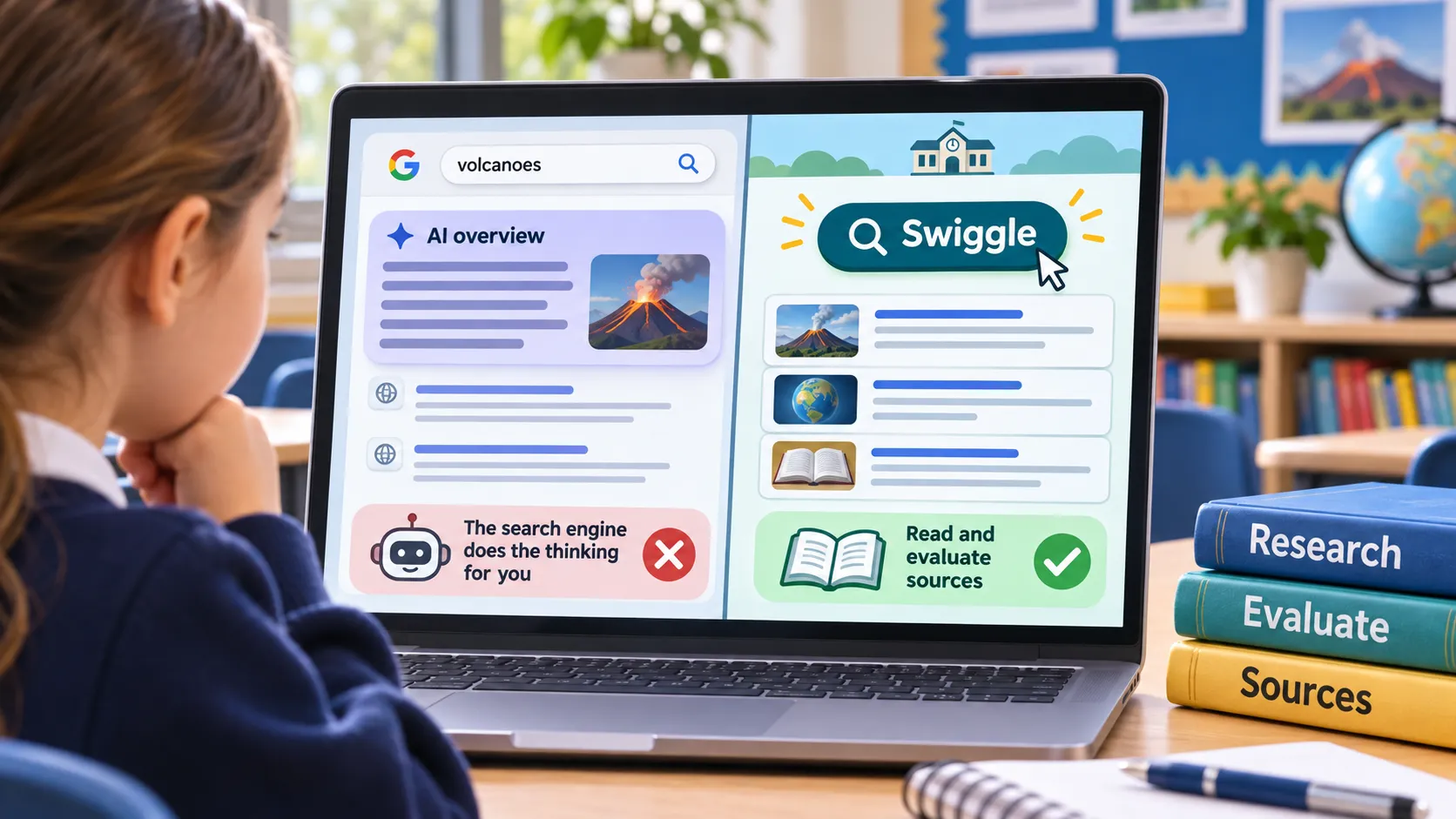
Google's AI Overviews can't be switched off, and they do the reading and research pupils should be practising. The answer is a start page for each year group or key stage with Swiggle at the top, plus the Swiggle extension for Chrome, with Google's Web view for when a task needs Google.
The short answer
You cannot switch Google's AI Overviews off completely, but you can make sure pupils rarely meet them. Google describes AI Overviews as "a core Google Search feature" and states plainly that "Features cannot be turned off". Turning off "AI Overviews and more" in Search Labs will not help either, because that setting does not disable all AI Overviews in Search.
For schools, the real issue is what an AI Overview does for pupils. It does the reading, the research and the sifting of information on the child's behalf. Those are exactly the skills we want pupils to develop: finding sources, reading them carefully, picking out what matters and judging what they have found. If the overview does that work for them, they are not practising it, however good its answer might be.
I wrote about how this surfaced in our own school in Google Has Put AI in Your Classroom. Did You Agree to It?, when a planned history research activity was quietly answered by Google before pupils had read a single website. Accuracy matters too, but it is the lost practice that concerns me most.
Staff are in a different position. They already have those skills and can judge what an overview gives them, so they may well find AI Overviews useful. This guide is therefore about pupil-facing devices only. The approach for pupils comes first, followed by how to use Google's Web view when a task does need Google.
The best approach for pupils: a start page, Swiggle and the Swiggle extension
For children, the better answer is not to fix Google at all. It is to combine three things: a start page built for each year group or key stage, a Swiggle button at the top of that page, and the Swiggle browser extension installed in Chrome.
1. A start page for each year group or key stage
The start page is the page that opens whenever a pupil opens a browser. Build one for each year group or key stage, carrying the links your school or trust actually uses with those pupils, such as reading and maths platforms and curriculum resources (these pages might be hosted on your website, part of a Google domain or Microsoft 365 Sharepoint pages).
At the very top, above everything else, put a large, clear Swiggle button. That gives teachers one simple instruction for any research task: "click the search button".
- Google is never the default. Pupils land on your page, not on a Google results page where an AI Overview has already done the reading for them.
- The same routine everywhere. Every class uses the same kind of page and the same button, so the habit builds year on year.
- Everything in one place. Pupils reach the tools for their year group quickly, without typing addresses or searching for them.
- No reliance on hidden settings. It does not depend on anything Google might change.
2. Swiggle as the search tool
Swiggle is a child-friendly search engine made by the online safety charity SWGfL, aimed at Key Stage 2. It is powered by Google Custom Search with SafeSearch filtering, prioritises educational resources, and checks search terms for inappropriate content. Most importantly, it returns websites rather than a generated answer, so pupils still have to find, read and evaluate the information themselves.
SWGfL is a reputable organisation in the UK that provides internet services for hundreds of schools in the south west.
3. The Swiggle extension for Chrome
SWGfL also makes a free Swiggle extension for Chrome. Its most useful classroom feature is SwiggleBot, a screen cover. If a child comes across something they find upsetting or think is inappropriate, they can cover the screen straight away and go and get an adult. Pupils can also report a page they think is not right, and SWGfL will consider blocking it.
Your IT provider can install the extension on pupil devices centrally, so it is always there. The extension is actively maintained, and was last updated in April 2026.
If pupils do need Google: use the Web view
Sometimes a task will genuinely need Google. Google's own "Web" results view shows plain links and no AI Overview, so that is the version to use with pupils. It uses a setting called udm=14.
- In the moment: after any search, click Web in the row of tabs under the search box. The AI Overview disappears.
- On a single classroom computer: make a "Web only" Google the default search engine, using the steps below.
- Across pupil devices: ask your IT provider to set it centrally.
In Google Chrome
- Type
chrome://settings/searchEnginesinto the address bar and press Enter. - Find "Site search" and click Add next to it.
- Enter a name, such as
Google Web, and a shortcut, such asgw. - In the URL box, enter:
{google:baseURL}search?udm=14&q=%s - Click Add, then open the three-dot menu next to your new entry and choose Make default.
In Microsoft Edge
- Type
edge://settings/searchEnginesinto the address bar to open the "Manage search engines" page. - Click Add.
- Enter the same name and shortcut as above.
- In the URL box, enter:
https://www.google.com/search?udm=14&q=%s - Save it, then open the three-dot menu next to the new entry and choose Make default.
Across pupil devices
Your IT provider can push the same setting to pupil devices through Group Policy, Edge configuration policies or Intune. It can be applied to pupil devices or pupil accounts only, so staff keep Google as it is. For Edge, they would set these three policies:
PolicyValueDefaultSearchProviderEnabledEnabledDefaultSearchProviderNameGoogle Web OnlyDefaultSearchProviderSearchURLhttps://www.google.com/search?udm=14&q={searchTerms}
Chrome uses policies with the same names. If your devices are centrally managed, you will not be able to change this yourself, and local settings changes may be blocked.
What to be aware of
- You lose some extras. The Web view gives plain text links, so image strips and knowledge panels disappear.
- It is not officially supported. Google does not document
udm=14as a public interface, so it could change without notice. Guides published in October 2026 still report it returning pages without an AI Overview.
A note on other extensions
There are other browser extensions that claim to hide AI Overviews. I am not recommending them. I do not know their developers or their work well enough to trust them on pupil devices. Anything installed for children should come from a trusted organisation, such as SWGfL.
Which option should you choose?
Use all three parts of the pupil approach together: a start page for each year group or key stage, Swiggle at the top, and the Swiggle extension in Chrome. Use Google's Web view only when a task genuinely needs Google. Staff can keep Google as it is, AI Overviews included, if they find them useful.
Review the setup every few months. Google changes its search pages often, and a setting that works today may need adjusting later.
Sources
Get more like this
One practical idea, one resource, one piece of tech, weekly.